

Managing your NCC Password

Your NCC password provides access to many campus technology resources and should be changed regularly to keep your account secure. Passwords expire every 180 days. North Central College provides a secure self-service password portal that allows faculty, staff, and students to manage their passwords anytime.
Password Changes

Time to change your password? If you've received a reminder to change a password that is expiring soon, remember to change it BEFORE the expiration date to avoid losing access to your accounts.

Forgot Password?

Forgot your password? Use the Password Portal's self-service recovery option to securely reset your password and regain access to your account. **To use this feature, you must be enrolled in PortalGuard MFA.


How to Change a Password


  1. Go to the NCC Password Portal
  2. Login with your NCC username and current password
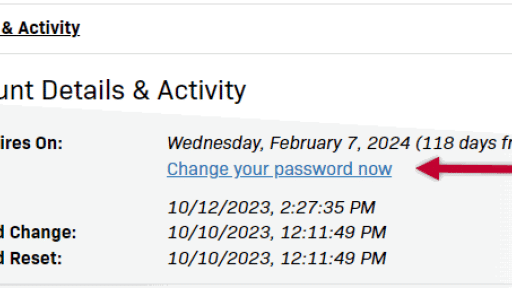
  3. Click on the Change your password now link
  4. Enter your CURRENT password when prompted
  5. Enter a One Time Passcode when prompted
    ** Locate the One Time Passcode from your Microsoft Authenticator app, or click on Problems with this authentication option to receive the code via email or text message.
  6. Enter your new password. Type in your new password again to confirm.
    * Make sure the new password meets criteria in green box
  7. Click Continue to complete your password change


How to Reset a Forgotten Password
 
  1. Navigate to the NCC Password Portal 
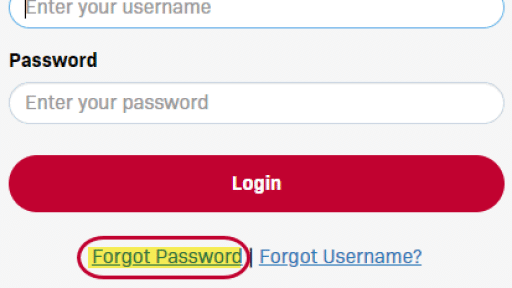
  2. Click on the Forgot Password link
  3. In the "username" window, enter your NCC username and click Continue.
  4. Locate the One Time Passcode (OTP) from your Microsoft Authenticator app, or click on Problems with this authentication option? to receive the code via email or text message. 
  5. Enter the OTP and select Continue.
  6. Enter your new password. Type in your new password again to confirm.
    * Make sure your new password meets the criteria in the green box 
  7. Click Continue to complete your password change.


    ** For security reasons, ITS does not change passwords over the phone or by email. If you forget your password, and are unable to successfully obtain a one time passcode, you will have to visit the ITS Help Desk in Carnegie 110 and show a picture ID to have your password reset.

    The Help Desk is located in Carnegie Hall 110. We are open Monday-Friday, 8:00 a.m. - 4:30 p.m.